Quick answer
Work from the outside in. First check the PlayStation Network status page, because the problem may not be yours. Then confirm other devices can get online, re-check the Wi-Fi name, password and security type on your PS5, fully restart the console and router, and try a wired connection. If your router is set to IPv6-only, enable IPv4: the PS5 doesn't support IPv6-only networks. Treat DNS and MTU changes as optional, not guaranteed fixes. If none of that helps, contact your ISP if other devices are affected, or PlayStation Support if only the console is.
When a PS5 won’t connect, it’s tempting to start changing network settings straight away. It’s usually more effective to work through the possible causes in order, starting with the ones outside your home. Each step either fixes the problem or rules out a whole area.
This guide follows the troubleshooting steps on Sony’s internet connection help page. It’s in two parts:
- Diagnostic steps (1 to 6): checks that narrow down where the problem is. Sony recommends these, and they don’t change how your network is configured, apart from re-entering your Wi-Fi details and restarting equipment.
- Optional advanced changes: settings such as DNS and MTU. They’re not standard fixes, they can make things worse if set incorrectly, and none of them is guaranteed to help.
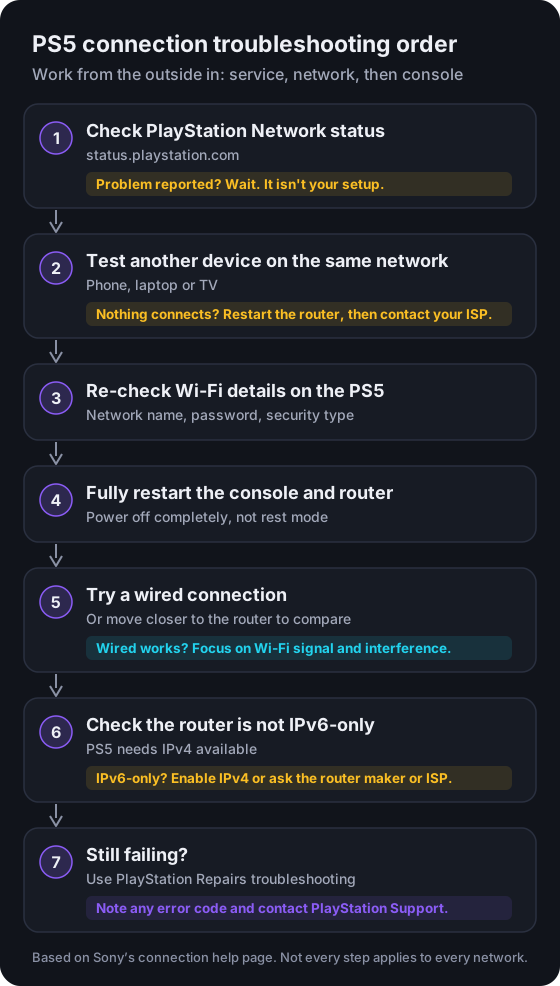
1. Check PlayStation Network status
Before touching your own equipment, check the PlayStation Network status page. Sony lists this as the first step. If it shows an outage or scheduled maintenance, the problem isn’t your setup and changing settings won’t help. Wait and check again later.
A service problem can look like a connection problem. For example, the console may be online but unable to sign in or download.
2. Test another device on the same network
Use a phone, laptop or TV connected to the same network, not mobile data:
- Other devices can’t get online either: the problem is more likely your router, modem or internet service. Restart them (see step 4) and, if that doesn’t help, contact your ISP.
- Other devices work: the problem is more likely between the PS5 and the router. Carry on with the steps below.
3. Verify your Wi-Fi details
Sony lists checking these details as a troubleshooting step. To set up or redo a wireless connection, go to Settings > Network > Settings > Set Up Internet Connection, choose your network and select Connect. Check:
- Network name (SSID). Some routers broadcast more than one network with similar names. Make sure you pick the right one.
- Password. Sony notes it may be printed on the back of your router. If you’ve changed it and can’t remember it, your router’s manufacturer, ISP or network administrator can help.
- Security type. Sony lists WPA, WPA2, WPA3 and WEP for PS5. Check that the security method matches your router’s.
Sony’s page also lists Set Up Manually and, if your router supports it, Set Up Using WPS Button as alternatives.
PS5 Pro owners: Sony suggests trying the connection both with and without Multi-Link Operation. To find it, highlight the network, press the Options button and choose Advanced Settings. This setting applies only to the CFI-7000 model group.
4. Restart the console and router
Restarting can clear temporary faults on either end. It’s a quick check rather than a guaranteed fix:
- Turn the PS5 off completely rather than putting it into rest mode.
- Restart the router and modem. Follow your provider’s or the manufacturer’s instructions, including any recommended wait time, and let the router finish starting up.
- Turn the PS5 back on and try connecting again.
5. Compare Wi-Fi with a wired connection
A temporary cable test helps show whether the problem is wireless:
- To connect with a cable, go to Settings > Network > Settings > Set Up Internet Connection > Set Up Wired LAN.
- Wired works but Wi-Fi doesn’t: the problem is likely to be wireless. Distance from the router, obstructions and interference can all affect Wi-Fi. You can reposition equipment or keep using the cable.
- Neither works: the cause is more likely in the router’s settings, your service or the console’s network configuration.
If the connection works but downloads are slow, see how to estimate PS5 download times, which explains why real speeds can fall short of plan speeds.
6. Check IPv4 and IPv6
IPv4 and IPv6 are two versions of the addressing system the internet uses. Sony’s page states that PS5 consoles support IPv6 connections but do not support IPv6-only connections. If your router is set to IPv6-only, change its settings so IPv4 is also available. Sony suggests asking the router’s manufacturer how; if your ISP supplied and manages the router, ask the ISP.
Optional advanced changes
Read this before changing anything
These settings aren't standard fixes. Try them only after the diagnostic steps above, and only if you understand what you're changing. Sony's advice is that if you're not familiar with these settings, you should ask your ISP or network administrator. Note the current values first, change one thing at a time, and switch back to automatic if it doesn't help.
When you set up a connection manually or open Advanced Settings, the PS5 lists the options below. On a typical home network, automatic settings are the normal starting point.
| Setting | What it does | Usual home setting |
|---|---|---|
| IP address | The address your console uses on your local network | Automatic (assigned by your router through DHCP) |
| DHCP host name | A name some networks use to identify the device | Not usually needed |
| DNS | The service that turns names such as playstation.com into network addresses | Automatic |
| MTU | The largest data packet the connection sends | Automatic |
| Proxy | Routes traffic through another server, mainly used on managed networks | Off, unless your network requires one |
DNS
DNS translates names into network addresses. Advice to switch to a different DNS service is common online, but it isn’t a guaranteed fix:
- When it might help: if names can’t be looked up because your current DNS service isn’t responding. Your ISP or network administrator can tell you whether that’s the cause.
- What it doesn’t do: DNS handles name lookups, not the data transfer itself, so it isn’t a way to increase your connection speed.
- Risks: a mistyped address can stop the console connecting at all. A different DNS service may bypass features that rely on your provider’s DNS, such as some network filters, and it sends your lookups to another company with its own privacy policy.
If you try it, record your current settings so you can return to Automatic.
MTU
MTU is usually best left on automatic. There’s no single correct value for every connection, and an incorrect value can cause connection problems rather than solve them. Only enter a specific value if your ISP or network administrator gives you one for your connection.
Opening ports
Sony’s glossary describes opening ports as changing network settings so that specific data can pass through your router. This isn’t part of getting a PS5 online in the first place. Opening ports allows more incoming traffic through your router, so only do it if you understand the security trade-off, following your router manufacturer’s or ISP’s guidance.
When to contact your ISP
Contact your internet provider when:
- other devices on the same network can’t get online either
- your provider reports, or you suspect, an outage in your area
- the router is supplied and managed by the ISP and needs a change, such as enabling IPv4
- you’re unsure whether an advanced setting such as DNS or MTU should be changed
- the connection keeps dropping on every device.
Have your account details ready, and say which devices are affected.
When to contact PlayStation Support
Contact PlayStation when:
- the PlayStation Network status page shows no problems
- other devices on your network get online without trouble
- your PS5 still can’t connect over Wi-Fi and over a cable after the diagnostic steps above.
Sony’s connection page points to PlayStation Repairs for further troubleshooting. It may first ask you to choose your country or region. Note any error code the console shows and which steps you’ve already tried.
Troubleshooting checklist
| # | Check | Type | If it fails or applies |
|---|---|---|---|
| 1 | PlayStation Network status page | Diagnostic | Outage or maintenance: wait. It isn’t your setup |
| 2 | Another device on the same network | Diagnostic | Nothing connects: restart the router, then contact your ISP |
| 3 | Wi-Fi network name, password and security type | Diagnostic | Correct them and reconnect |
| 3a | PS5 Pro only: Multi-Link Operation on and off | Diagnostic | Use whichever setting connects |
| 4 | Full restart of the console and router | Diagnostic | Try connecting again after both have started |
| 5 | Wired connection | Diagnostic | Wired works: the problem is likely wireless |
| 6 | Router not set to IPv6-only | Diagnostic | Enable IPv4 or ask the router maker or ISP |
| 7 | DNS, MTU or port changes | Optional, not guaranteed | Only with guidance; revert if there’s no improvement |
| 8 | Still failing | Next step | PlayStation Repairs troubleshooting or PlayStation Support |
Frequently asked questions
Why won't my PS5 connect to the internet when my phone can?
If other devices on the same network work, the problem is more likely between the console and the router. Re-check the Wi-Fi network name, password and security type on the PS5, fully restart both devices, try a wired connection, and check that the router isn't set to IPv6-only.
Does the PS5 support IPv6?
Sony states that PS5 consoles support IPv6 connections but not IPv6-only connections. If your router is set to IPv6-only, change it to use IPv4 as well. Your router's manufacturer or your ISP can explain how.
Will changing DNS make my PS5 faster?
There's no guarantee. DNS turns names into network addresses; it doesn't carry the data itself, so it isn't a way to increase connection speed. A different DNS service may help only if your current one isn't responding, and a mistyped address can stop the console connecting. Sony advises asking your ISP or network administrator if you aren't familiar with these settings.
Should I change the MTU setting?
Usually not. Leave it on automatic unless your ISP or network administrator gives you a specific value. There's no single correct value for every connection, and an incorrect MTU can cause connection problems rather than fix them.
When should I contact PlayStation Support instead of my ISP?
Contact your ISP if other devices on the same network can't get online, or if there is an outage. Contact PlayStation Support if PlayStation Network shows no problems, other devices work, and your PS5 still can't connect over Wi-Fi or a cable after the steps in this guide.
Sources and editorial review
Written and reviewed by the Vibe Game One Editorial Team. This guide explains official documentation and general technical concepts. It isn’t based on hands-on testing of specific products. Technical details were checked against these official pages:
- How to set up an internet connection on PlayStation consoles (opens in a new tab) — PlayStation Support (Sony Interactive Entertainment)
- PlayStation Network service status (opens in a new tab) — Sony Interactive Entertainment
- PlayStation Repairs (opens in a new tab) — Sony Interactive Entertainment
Sources last checked . Menus and requirements can change with system software updates, so if something on your console looks different, the official page is the most current reference. Vibe Game One is independent and is not affiliated with Sony Interactive Entertainment. Read how we research and update guides in our editorial policy.